Skip to content
Technology News Information & Jobs

Technology News Information & Jobs

Ubuntu Tutorials, Ubuntu How To , Linux Tips, Tech Jobs

  • Work with US
  • Search Jobs
  • Post a Job
  • Contact Us
  • Ubuntu
    • Ubuntu 18.04
  • Ubuntu 20.04
  • Ubuntu 22.04
  • Themes
  • Linux
  • Laptops
  • Tutorials
  • Job Dashboard
  • Toggle search form
Razer x Lambda Tensorbook Powered By Ubuntu - Full Specifications & Price

Razer x Lambda Tensorbook Powered By Ubuntu – Full Specifications & Price

Posted on April 16, 2022 By admin

Razer x Lambda Tensorbook Powered By Ubuntu – Full Specifications & Price

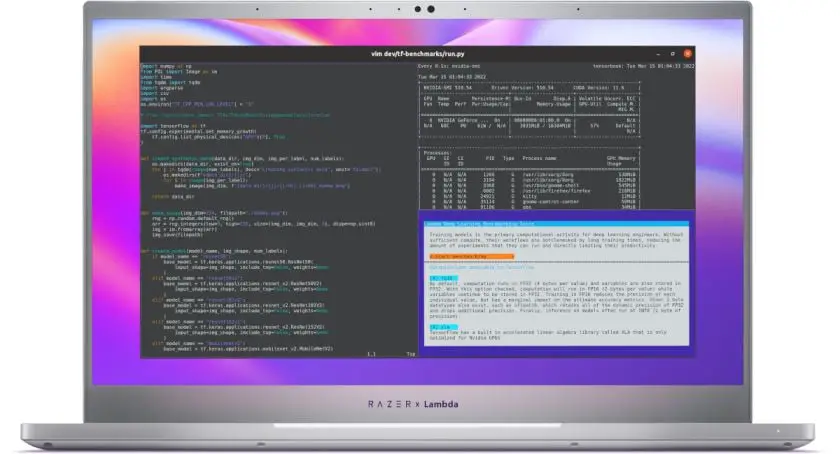
TENSORBOOK is a deep learning laptop from Lambda. Powered by an Intel i7-11800 Octo-Core processor, Tensorbook is the world’s most powerful Linux laptop that is powered by Ubuntu Linux.  Tensorbook is an effort of Razer and Lambda to build the most powerful Linux laptop. The Razer x Lambda TensorBook is already up for sale at a starting price of $3,499. Tensorbook is 10x faster than Google Colab and 4x faster than Apple M1 Max.
Price Of Razer x Lambda Tensorbook Is $3,499.

Razer x Lambda Tensorbook Powered By Ubuntu – Full Specifications & Price

GPU : NVIDIA® RTX™ 3080 Max-Q

VRAM : 16 GB GDDR6
CPU: Intel Core i7-11800H
RAM : 64 GB 3200 MHz DDR4 , 2 RAM slots
Storage :2 TB NVMe PCIe 4.0
Display: 165 Hz 1440p 15.6″
Resolution:2560×1440 pixels
Dimensions (mm): 16.90 x 355.00 x 235.00

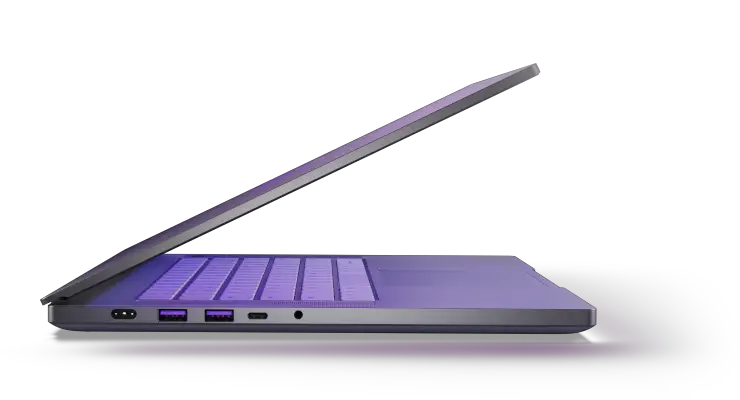
Input / Output:  One UHS-III SD Card Reader, One Kensington Lock Port, Two Thunderbolt™ 4 Ports (USB-C), One Power Port, Three USB3.2 Gen 2 Type-A Ports, One Microphone Combo Jack, One HDMI 2.1

Network: WiFi 6E,Bluetooth 5.2
Battery: 80-watt-hour LiPo
Charging: 230 W via Power Port, 100 W via Thunderbolt 4

Weight: 2.1 kg / 4.43 lbs

Price Of Razer x Lambda Tensorbook Is $3,499.

READ More Relevant Stuff:  Some Of The Best Linux Console File Managers
Linux, Ubuntu 20.04, Ubuntu 22.04 Tags:Tensorbook

Post navigation

Previous Post: How To Install NotepadQQ On Linux [Updated]
Next Post: Fix cannot find a valid baseurl for repo base/7/x86_64 error

Related Posts

Set The Default Terminal Emulator On Ubuntu 18.04 LTS Set The Default Terminal Emulator On Ubuntu 18.04 LTS ubuntu 18.04
apt Command In Linux Examples apt Command In Linux Examples Linux
Ubuntu 20.04 LTS Ubuntu 20.04 LTS “Focal Fossa” Final Beta Released Linux
How To Fix "Could not get lock /var/lib/dpkg/lock - open (11 Resource temporarily unavailable)" Errors How To Fix “Could not get lock /var/lib/dpkg/lock – open (11 Resource temporarily unavailable)” Errors Linux
Fix the Laptop Brightness Problem In Ubuntu 22.04 LTS If you are having a problem with the brightness of your Laptop after installing Ubuntu 22.04 LTS then you are in the right place as we have a solution for it. There are multiple ways to fix the brightness problem in Ubuntu 22.04 LTS. How To Fix Brightness Problem In Ubuntu 22.04 LTS There are multiple ways to fix the brightness problem in Ubuntu 22.04 LTS. Method 1: In this very first method, we will take the help of software or app called "Brightness Controller". Run the following command to add PPA and install the Brightness Controller in Ubuntu 22.04 LTS. sudo add-apt-repository ppa:apandada1/brightness-controller sudo apt update sudo apt install brightness-controller Method 2: In this method, we will edit the Grub file to configure the setting and fix the brightness problem in Ubuntu 22.04 LTS. You need to open the file /etc/default/grub using gedit or any favorite editor of yours. sudo gedit /etc/default/grub After the file is open on editor, find the below line. GRUB_CMDLINE_LINUX_DEFAULT="quiet splash" Change the above line to: GRUB_CMDLINE_LINUX_DEFAULT="quiet splash acpi_backlight=vendor" You might be wondering about the changes made by this update. These changes will load device-specific drivers in Linux. Save the file and close the text editor and run the following command to update the grub and restart your Ubuntu. after reboot, try adjusting the brightness using Laptop's dedicated control keys. update-grub Method 3: In this method, run the following command to find out the name of your display using the below command. xrandr | grep " connected" | cut -f1 -d " " So, the next is to change the brightness using the display name. xrandr --output system-display-name --brightness 0.7 Fix Brightness Problem In Ubuntu 22.04 LTS Ubuntu 22.04
Multiple Ways To Rename Multiple Files At Once In Linux Multiple Ways To Rename Multiple Files At Once In Linux Linux

Recent Posts

  • New Job Search October 10, 2025
  • How To Enable Hibernate in Ubuntu 22.04 LTS May 20, 2024
  • Popular Ubuntu Games: Top 5 Games To Play March 17, 2024
  • WordPress | Your site doesn’t include support for the “generateblocks/container” block GenerateBlocks Plugin February 11, 2024
  • Ubuntu Autoremove Command Debian Autoremove Command February 10, 2024
  • How To Mount Windows 11 Shares on Debian Linux December 7, 2023
  • Anonymous Browsing 101: A Deep Dive Into Residential Proxies November 20, 2023
  • How To Correctly Install Uninstall Linux Ubuntu Nvidia Drivers Fast October 31, 2023
  • Ethical Web Design: The Dos and Don’ts October 28, 2023
  • Understanding the Role of Security Operations Center October 25, 2023
  • The Positive Effects of AI Tools and Online Services on Students Successful Essay-Writing Skills October 3, 2023

Categories

  • Android
  • Apple
  • Blogs
  • Debian
  • Fix
  • Gadgets
  • Game
  • Google
  • How To Ubuntu
  • Internet
  • Laptops
  • Linux
  • Linux Commands
  • Linux Game
  • Linux Mint
  • News
  • Operating Systems
  • Security
  • Technology
  • Themes
  • Tools
  • Tutorials
  • Ubuntu
  • ubuntu 18.04
  • Ubuntu 20.04
  • Ubuntu 22.04
  • Windows 11
  • Wordpress
  • Search Jobs
  • Post a Job
  • Job Dashboard
  • Contact Us
  • About US
  • Cookie Policy
  • Terms and Conditions
  • Privacy Policy
  • Sitemap
  • Write For US

Tags

android apps centos ChatGPT command Commands Debian deepin Desktop docker Fedora fix game games Gaming gnome google kernel linux linux commands linux kernel Linux laptops Linux Mint Linux themes minecraft NVIDIA Python Raspberry Pi sysadmin themes ubuntu ubuntu 18.04 Ubuntu 18.04 LTS Ubuntu 20.04 ubuntu 20.04 lts Ubuntu 22.04 LTS Ubuntu games Ubuntu kernel ubuntu themes ubuntu tutorial VirtualBox Windows Windows 11 Wine WSL
itsubuntu.com is an Equal Opportunity Employer. For Advertisement, Jobs, Guest posts, and any other thoughts, email us at [email protected]
  • SQL Report Writer

    • Hammonton, NJ
    • TWO95 International
    • Full Time
  • Sr Electrical Engineer, Data Center (Hybrid)

    • San Jose, CA
    • CyberCoders
    • Full Time
  • Distinguished Data Engineer

    • Petersburg, VA (Remote)
    • Capital One
    • Full Time
  • Deviation Writer

    • Durham, NC
    • Process Alliance
    • Full Time
  • Remote Blockchain Engineering Manager (San Francisco)

    • San Francisco, CA
    • Circle
    • Full Time
  • Azure Engineer

    • Fort Worth, TX
    • Jobot
    • Full Time
  • Nights & Weekends Blogger, The Cut

    • Remote
    • Vox Media
    • Full Time
  • AI / Machine Learning Engineer

    • Stratford, CT
    • Lockheed Martin
    • Full Time

Copyright © 2025 Technology News Information & Jobs.

Powered by PressBook Grid Blogs theme